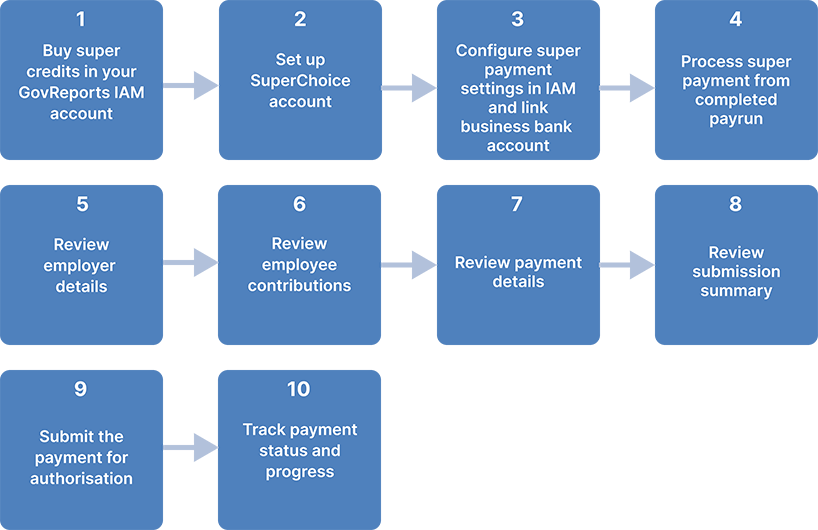
Superannuation Payment
Payday Super is a government requirement for all employers from1 July 2026.
Employers must pay superannuation contributions for employees when wages are paid.
This is a government-initiated change and brings in a major adjustment to the legal compliance obligation for employers who pay super. Please check the ATO information on Payday Super more detailed information.
As the free ATO small business superannuation clearing house is no longer available for small employers, we offer an affordable and straightforward solution for small and micro employers.
This user guide outlines Payday Super features available for employer businesses using payroll functions within GovReports Interactive Accounts Manager (IAM). The User Guide assumes that business owners have previously set up their client list and relevant employees, and have basic familiarity with STP Payroll Events.
If you need further detail on creating pay events in IAM, please visit IAM STP Userguide.
GovReports IAM allows you to create STP pay events and process the super at the same time. It is assumed that you have an IAM account because you need to create and file STP pay events, therefore in IAM you cannot create super-only transactions; the super payment is always linked to an STP pay event.
STP pay events can be created as needed to process payroll and superannuation payments for employees, contractors or closely held payees.
SuperChoice is our third-party provider of the superannuation payment clearing house service. In addition to an active GovReports IAM account, agents must register for a SuperChoice account.
IAM account holders must purchase prepaid credits to use as payment for superannuation payment transactions.
Payday Super is initiated from the STP Payroll Event screen or the Superannuation Payment Details in the My Lodgments menu.
From the GovReports Home screen, go to My Account > Settings > My Subscription > Top Up Credits.
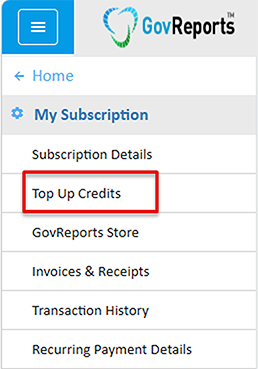
Select Top Up Credits.
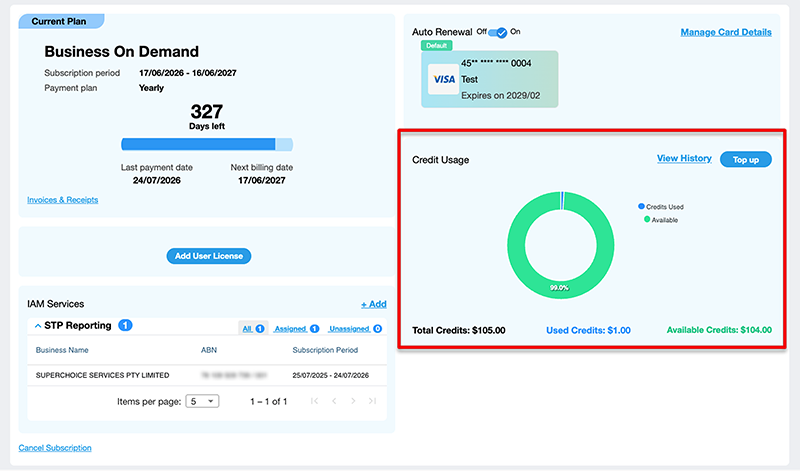
Enter the number of credits you wish to purchase. Note that if you wish to purchase less than 50, a 40 cent processing fee will be added to your payment.
Check that the billing details are correct. You may pay by credit card or by invoice and bank transfer.
Once the credits have been applied to your account, you can return to the Top Up Credits screen and see how many you have at any time.
If you are preparing a submission but you do not have enough credits to complete the transaction, you will receive a notification to buy more credits. The superannuation submission will be saved; you will need to buy more credits and then return to the submission to proceed with the lodgment.
Fees are charged at $1.00 per employee per transaction.
Errors in your pay run, super fund details, duplicated payments, missed payments, insufficient funds or other issues may incur additional fees from SuperChoice.GovReports will pass on the direct cost of additional fees to you if incurred.
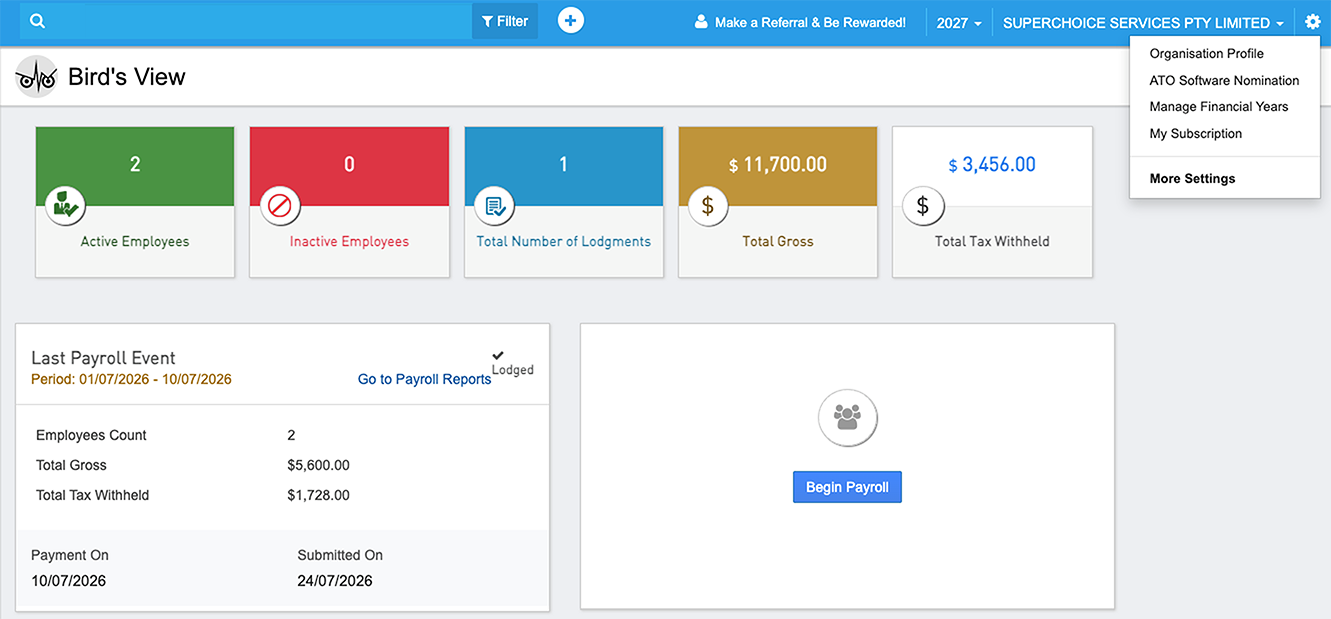
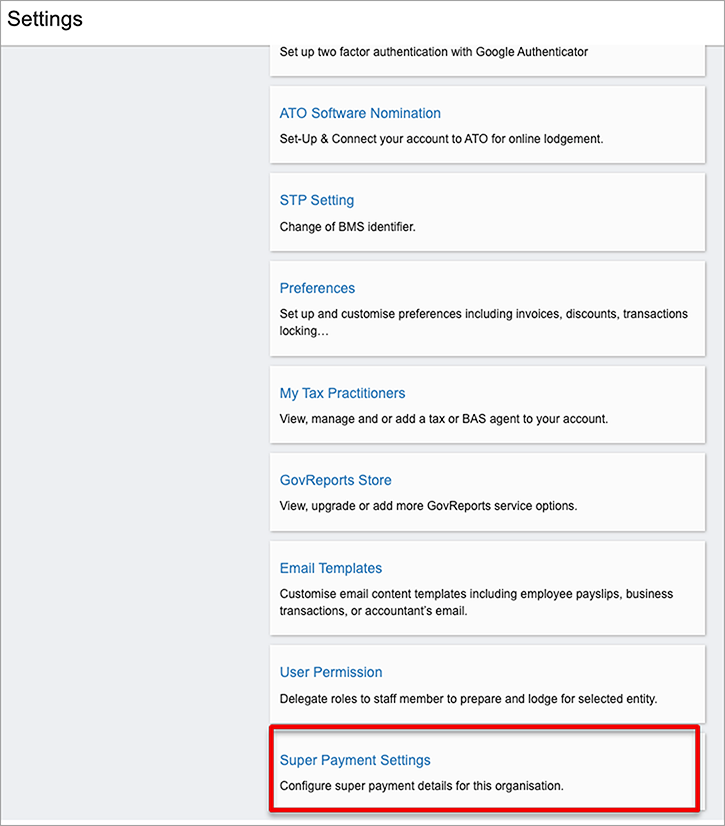
Before creating a super payment, you must have the business settings configured.Access the settings from Settings > More Settings > Super Payment Settings > .
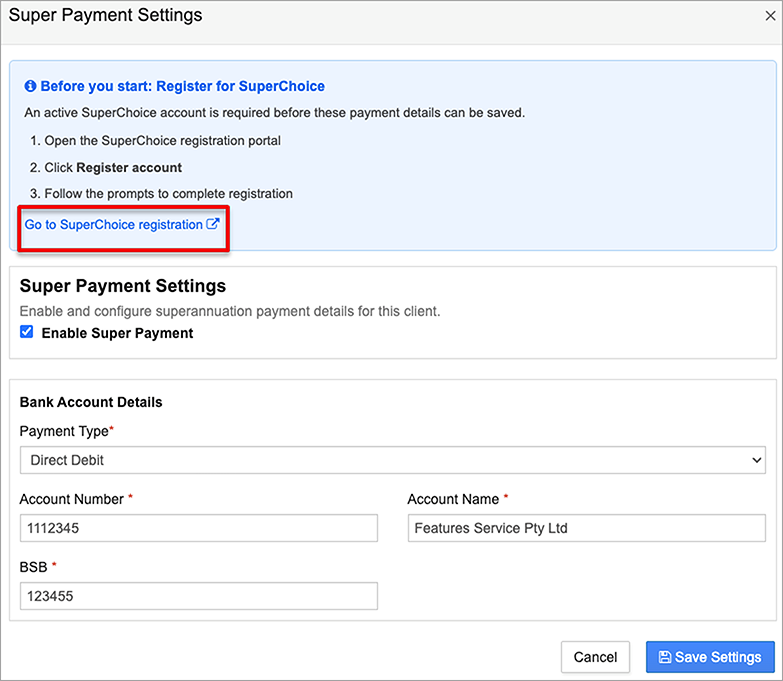
Enter your business bank account details and select Enable Super Payment.
Follow the link to the SuperChoice website.
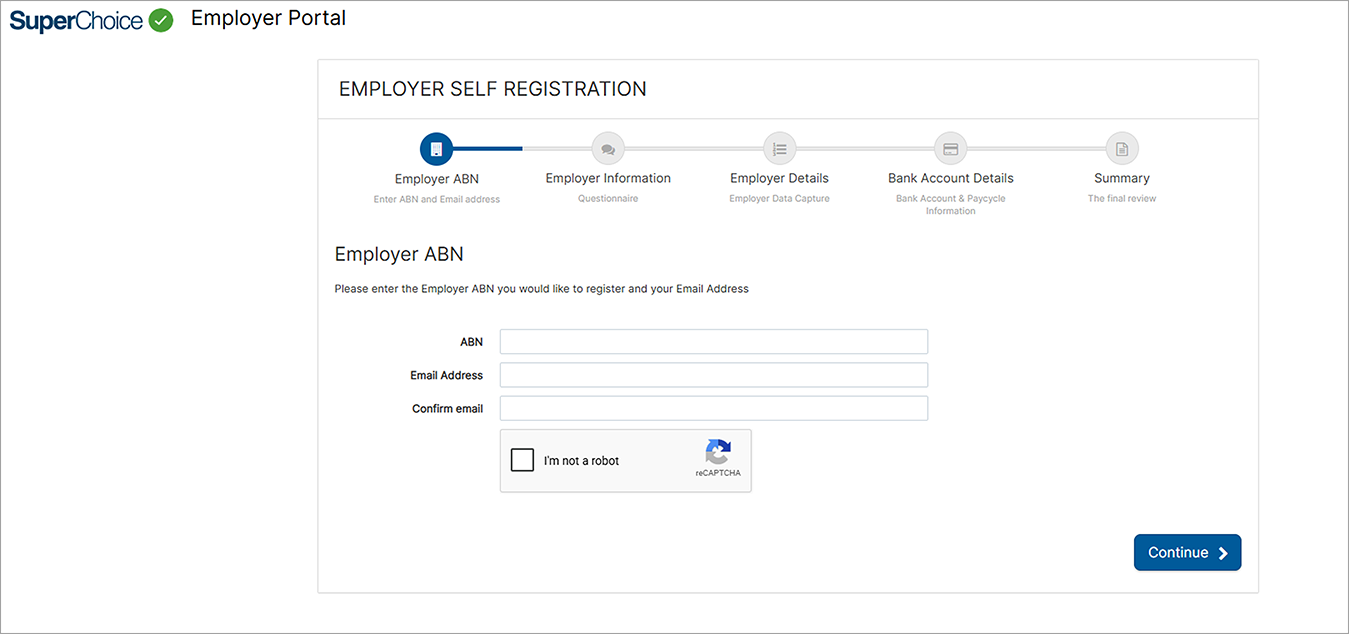
Enter your business ABN and details to register the account.
Save the SuperChoice login credentials for future reference. Note that the login for SuperChoice is separate from GovReports.
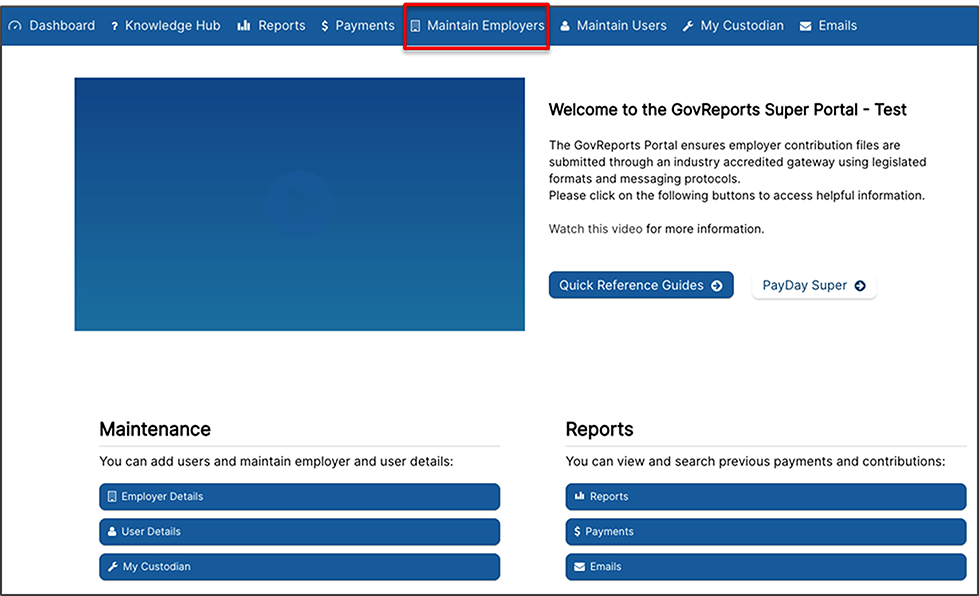
From the dashboard you can access SuperChoice technical help and Payday Super general information.
To add your business details, go to Maintain Employers.
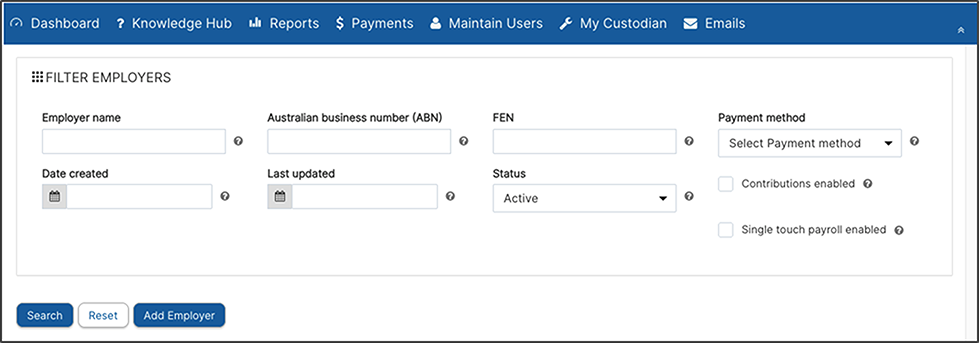
Select Add Employer.
Ensure you have access to all relevant information as you will not be able to save your business details in SuperChoice without all required fields.
You will need contact details, payment method details, and bank details for refunds.
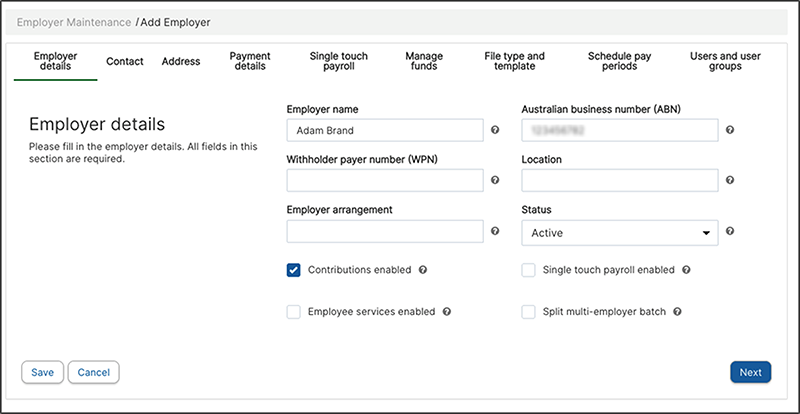
Enter your business name and ABN. Make sure the status is listed as active. Select only Contributions Enabled box.
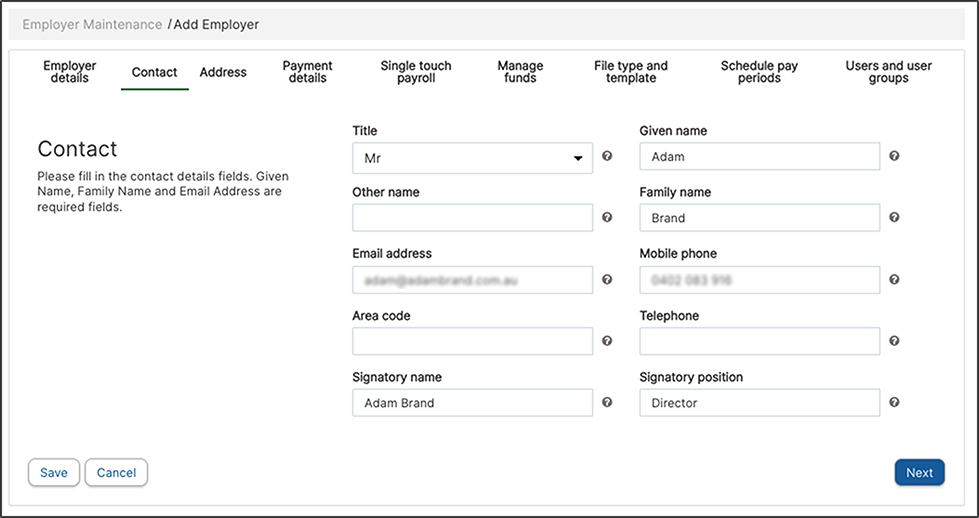
On the next screens, add the business contact details and address.
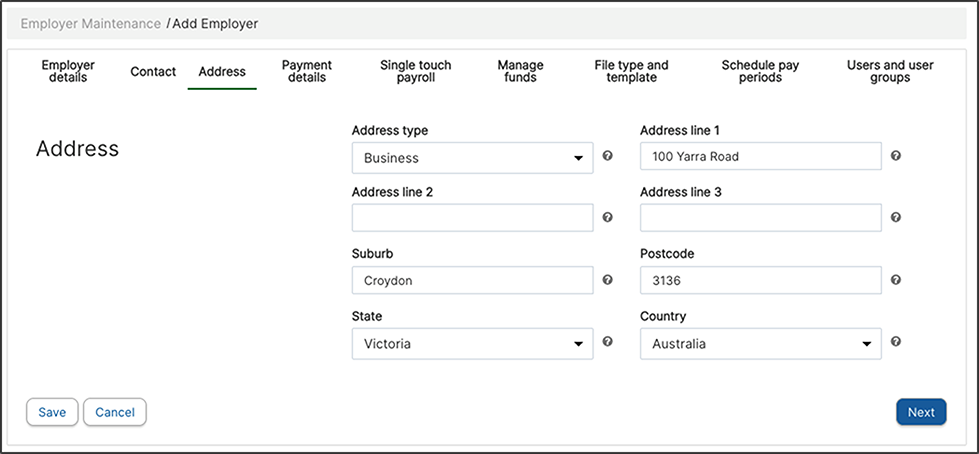
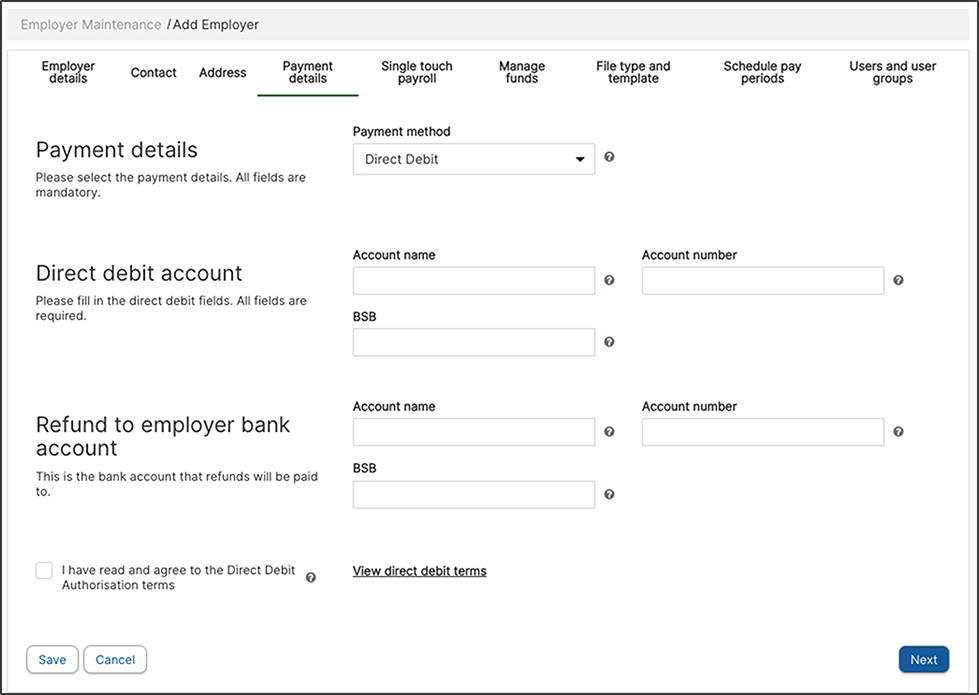
Select the default payment method, either direct credit or direct debit.
Direct Debit: select this option to link your bank account to the super payment. This option will immediately withdraw funds each time a payment is submitted. SuperChoice will deduct the payment from your business bank account on the same day, but funds will be held by SuperChoice for up to three days to allow distribution to the individual employee super funds.
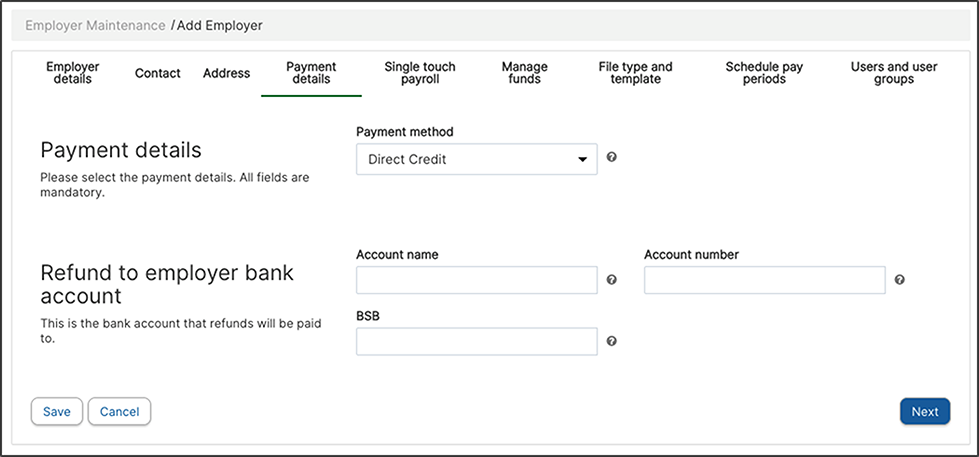
Direct Credit: select this option to receive a payment reference number that you must use to manually make the payment from your business bank account. SuperChoice holds the funds for up to three days to allow distribution to individual employee funds, once SuperChoice has received the payment.
With this option, it is crucial that the employer makes payment as soon as possible so that the payment can be completed within the government's requirement of seven days.
Once you have added all required details, select Save.
From the SuperChoice dashboard you can generate various reports. Please refer to the SuperChoice reference guides for details.
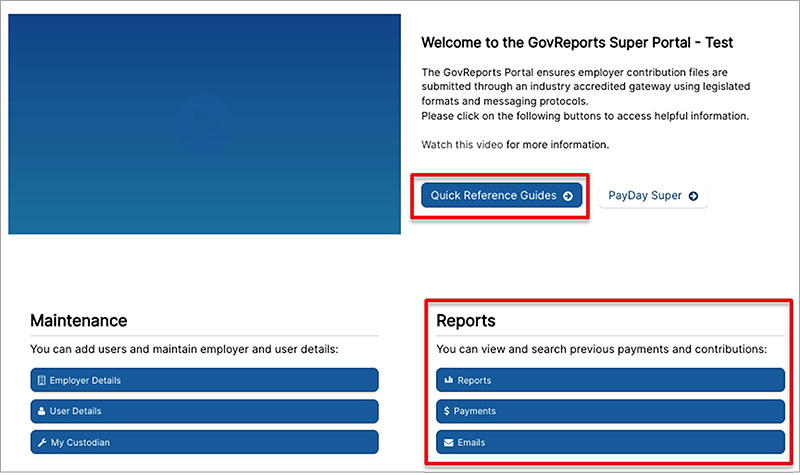
SuperChoice technical help is available from any screen. Go to Knowledge Hub and search for your topic.
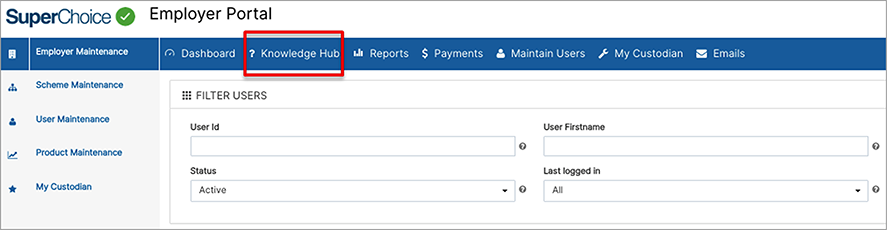
Please note that we cannot provide technical help for the SuperChoice portal; you will need to contact SuperChoice directly for any issues with their platform.
Default payment methods
Direct Debit: select this option to link your bank account to the super payment. This option will immediately withdraw funds each time a payment is submitted.SuperChoice will deduct the payment from your bank account on the same day, but funds will be held by SuperChoice for up to three days to allow distribution to the individual employee super funds.
Direct Credit: select this option to receive a unique payment reference number that you must use to manually make the payment from your business bank account.SuperChoice holds the funds for up to three days to allow distribution to individual employee funds, once SuperChoice has received the payment.
With this option, it is crucial that the employer makes payment as soon as possible so that the payment can be completed within the Government requirement of seven days.
Even if you decide on one payment method as your default, this can be overridden at the payment transaction level, and you can choose the other method as needed.
When using IAM to process super payments for the first time, ensure you have all details available to make the process efficient. Missing employee details or super funds may prevent you from proceeding.
You will need:
- Employer business details, including ABN and authorised contact.
- Employee details, including DOB, address, TFN and employment status.
- Super fund USI and member number for APRA funds.
- Super fund ABN, bank details and ESA for SMSFs.
- Contribution details, including the pay period, contribution type/s and amounts of each contribution type.
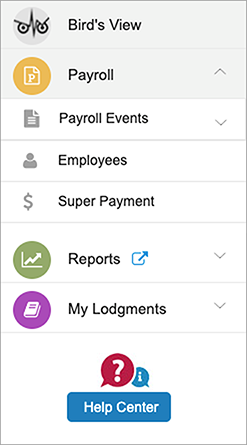
Go to Payroll > Payroll Events >Pay Run > .
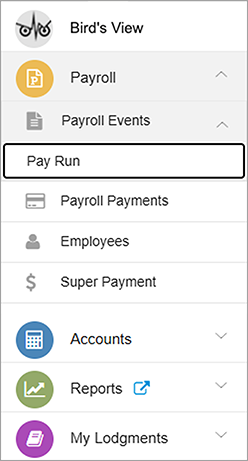
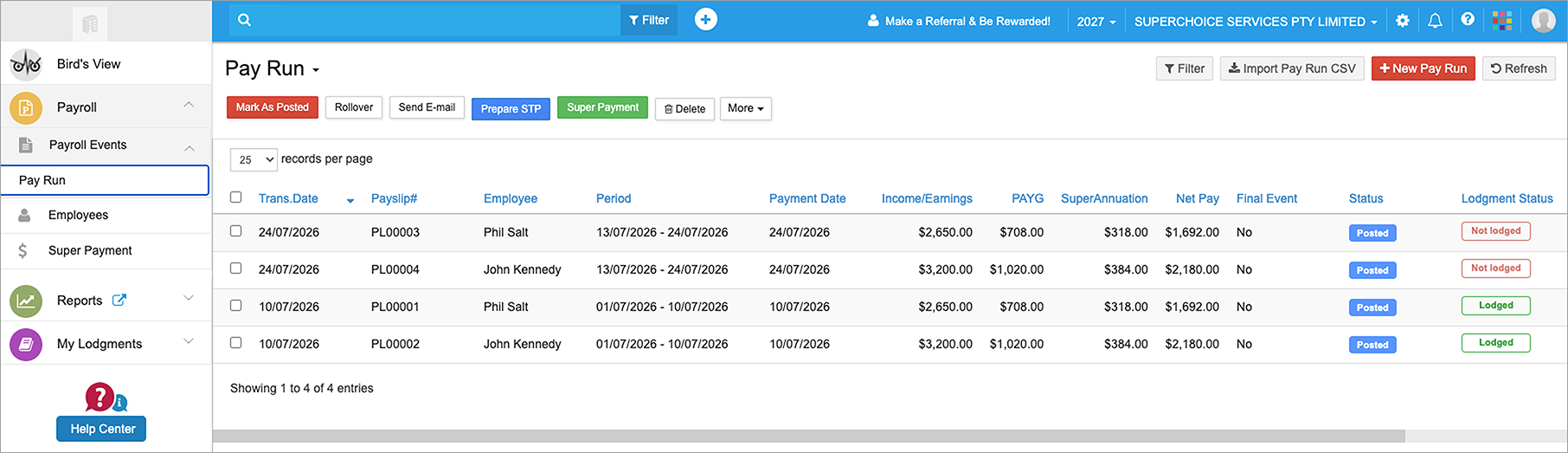
Select the pay event you wish to process the super payment for, then select Super Payment. Note that you can only process the super for pay events that have been posted and lodged.
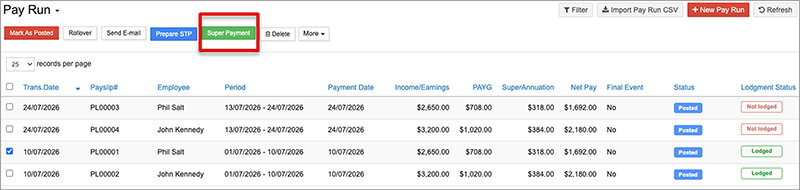
The Super Payment button won't appear if you haven't completed the Super Payment Settings and the SuperChoice account setup. If you do not see this button, return to Settings to complete the setup.
Select Ok.
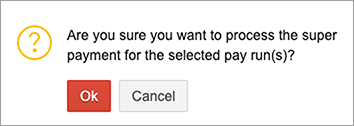
The Super Payment Details screen will open. .
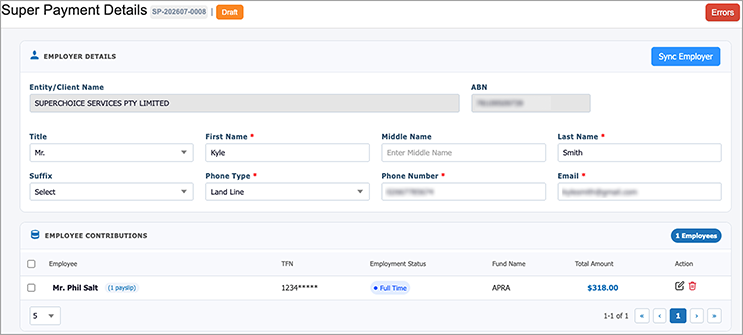
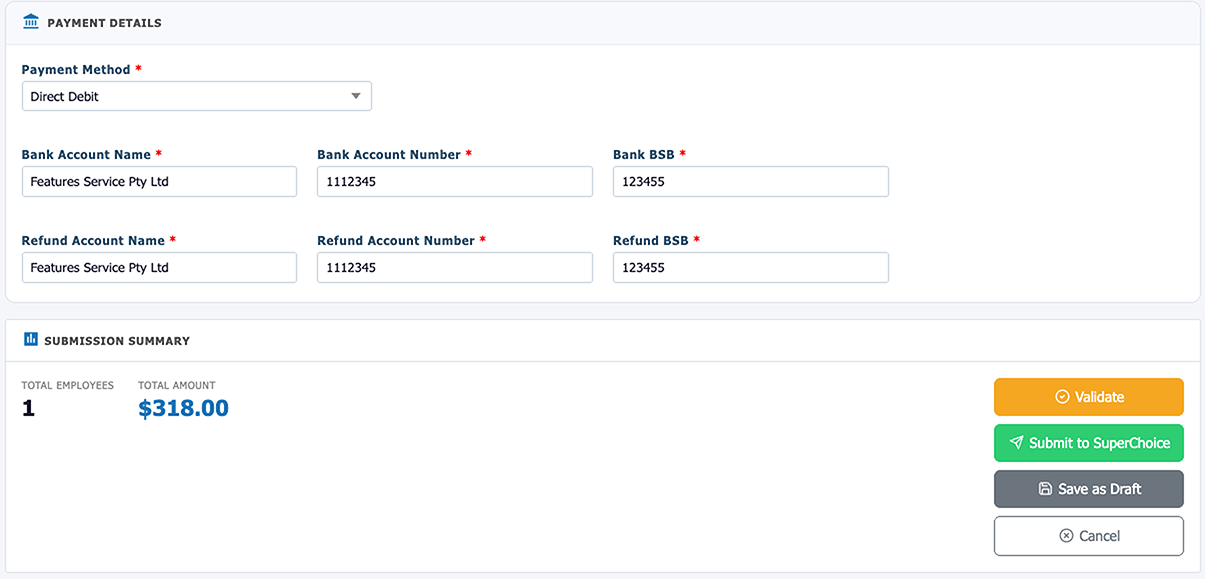
The details are automatically populated from the STP pay event.
- Employer Details - check the employing business details are correct.
- Employee Contributions - details are populated from the pay run.
- Payment Details - select the payment method and check the total employees and total amount of the payment.
- Submission Summary - review the total number of employees and amount before validating, submitting to SuperChoice or saving as a draft.
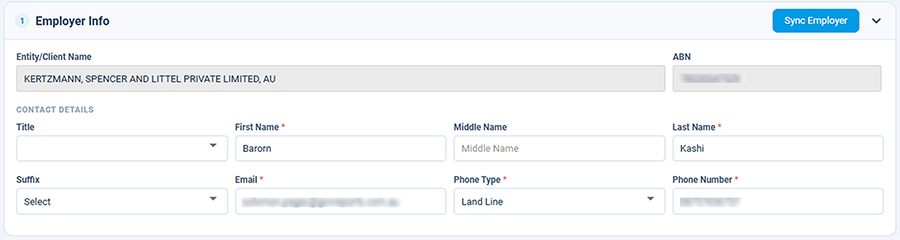
Check that the employer info is correct. Check the entity name, ABN and contact details. If any required details are missing, you can add them at this screen.
Employee details are automatically populated from STP pay events.
Review all required employee details: name, date of birth, address, tax file number, and employment details. You will not be able to proceed without all required details.
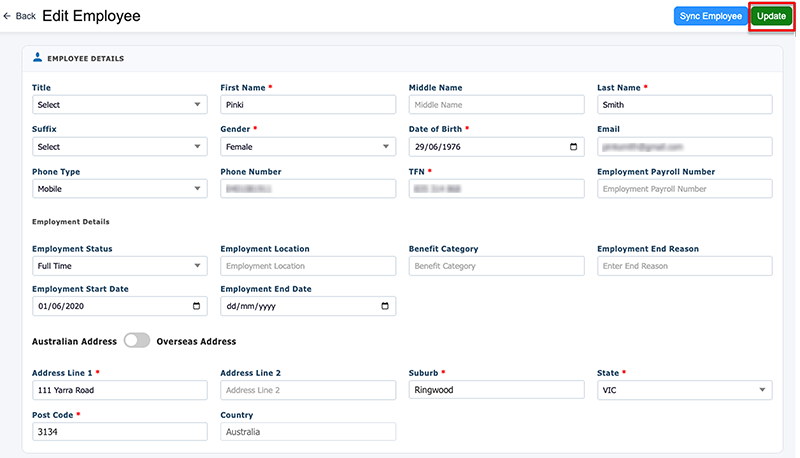
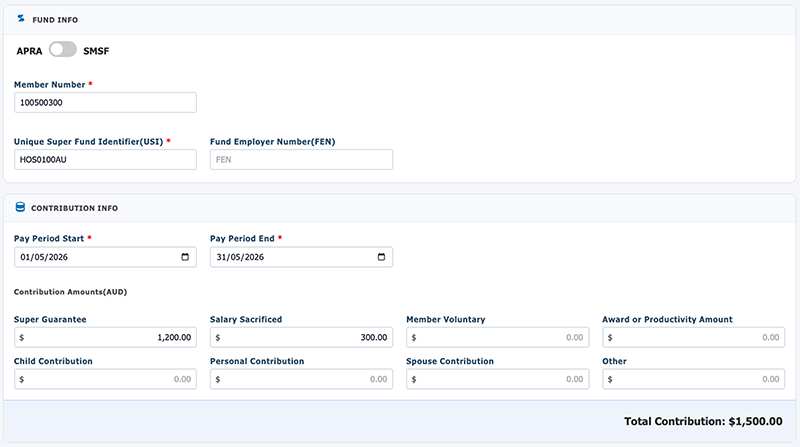
Edit the contribution if needed. However, we do not recommend this if you have already processed the pay run and filed it with the ATO. If the pay run is incorrect, it is better to correct the pay run and associated details including the super category or amount and then process the super linked to the corrected pay run.
Select Update at the top right of the screen.
Note that closely held payees, such as company directors who may not be paid wages, still need to be set up as employees in IAM to process their super payments.
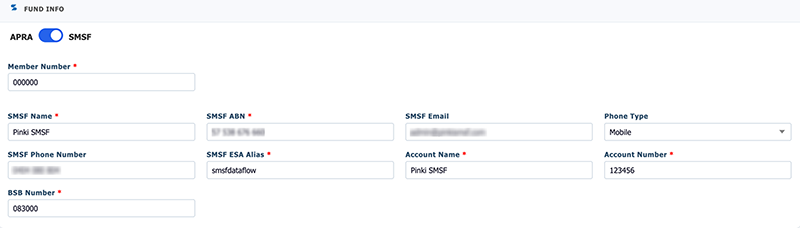
If you only need to make payments for closely held employees such as directors who have a Self-Managed Super Fund (SMSF), you are allowed to pay directly to the SMSF, without having to lodge and pay through a clearing house.
Self-managed super funds must have an electronic service address. The super payment cannot be processed without an ESA and all other required details.
Multiple Super Funds for an Employee
Currently, SuperChoice does not support paying super contributions into more than one super fund per employee.
For example, some employees want employer super guarantee contributions paid into one fund, and salary sacrifice amounts paid into a separate fund. In this example, we recommend that you prepare two super payments - one for the SGC amount and a separate one for the salary sacrifice amount. If you also need to prepare payroll events for this employee, set up the employee twice - one with the SGC super fund attached, and one with the salary sacrifice fund attached. You could then have the same employee listed twice in the one STP pay event and prepare the super payment from there.
Reviewing Contribution Info
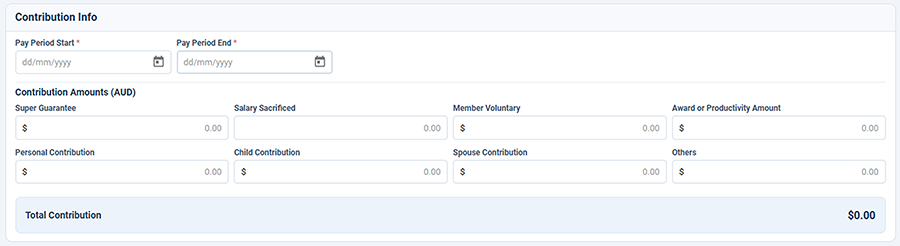
Review the contribution details, including the pay period dates.
Ensure the correct categories are selected for the super payment: super guarantee, salary sacrifice, member voluntary (employer additional), award amount, personal contribution (employee additional), child contribution, spouse contribution or other contribution.
Note: only use the 'other' type if directed by an insurance company.
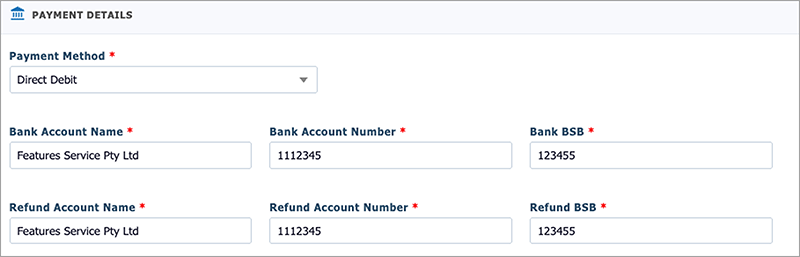
Enter the payment details. Select the payment type and review the saved bank details or generate the PRN. Review the total employees and total amount.
Direct Debit: check the bank details and total amount are correct.
Direct Credit: select Generate Payment Reference Number - this field will then populate with a unique number attached specifically to this super payment. Check the bank details and total amount are correct. Note the SuperChoice bank details.
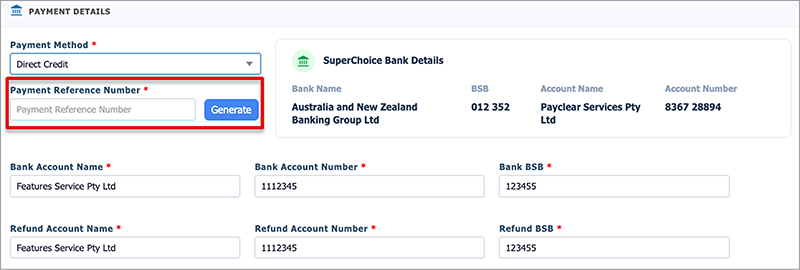
Note the Payment Reference Number. When you receive the confirmation email check that the PRN matches the submission PRN.

The correct PRN must be included in the direct credit payment to SuperChoice. If the number is incorrect or does not match, the payment will be rejected.
It may take up to 21 days for a rejected payment to be returned to your bank account. You will be liable for government penalties and SuperChoice fees. You will need to process the payment again using the correct details. GovReports will charge the usual fee per employee per transaction for any repeated payments.
Review the summary of the number of employees and the total payment amount.
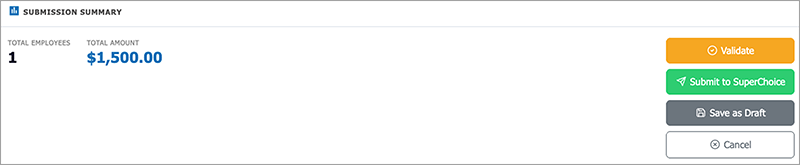
Once the details are correct, select Validate, Submit to SuperChoice or Save as Draft.
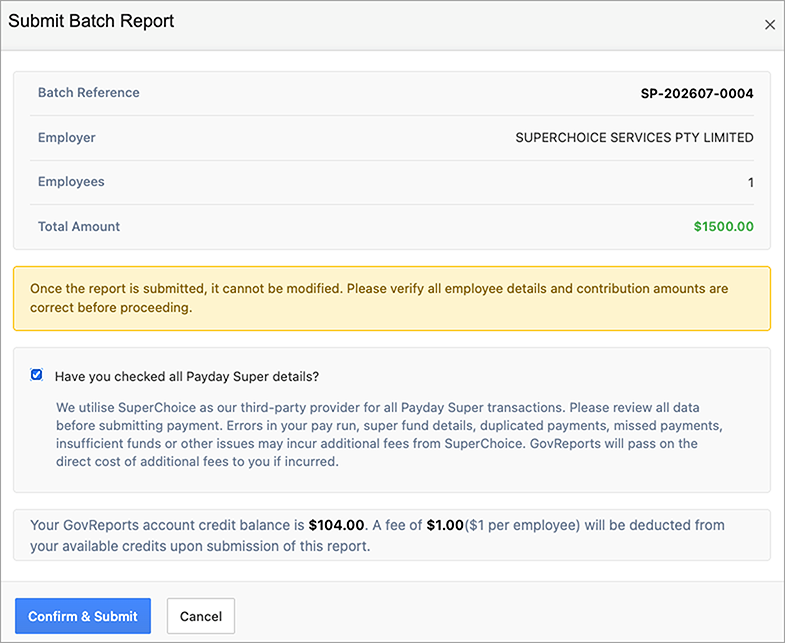
When you are ready to finalise the super payment, select Submit to SuperChoice.
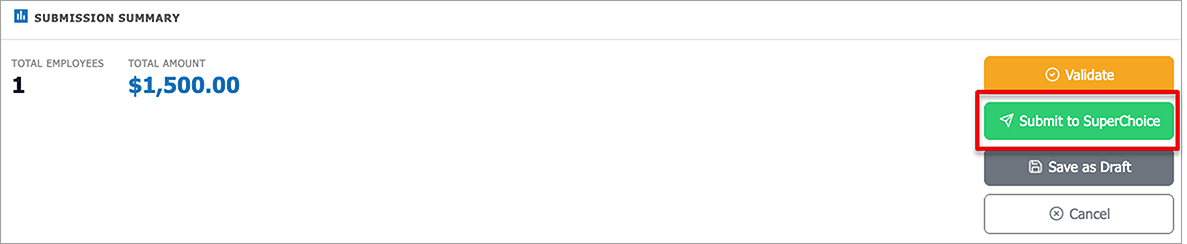
This will open a new window asking you to confirm all details are correct before proceeding. Once the report is submitted, it cannot be changed.
The authorised user will receive an email confirming the payment.
The submission is sent to SuperChoice as soon as the business owner has submitted the payment and the funds leave the bank immediately. SuperChoice has three days to distribute the funds to the individual super fund account.
The authorised user will receive an email with the PRN and SuperChoice bank details. The employer must make a bank transfer using the details in the email. Check that the PRN is correct. (See Payment Reference Number information above).
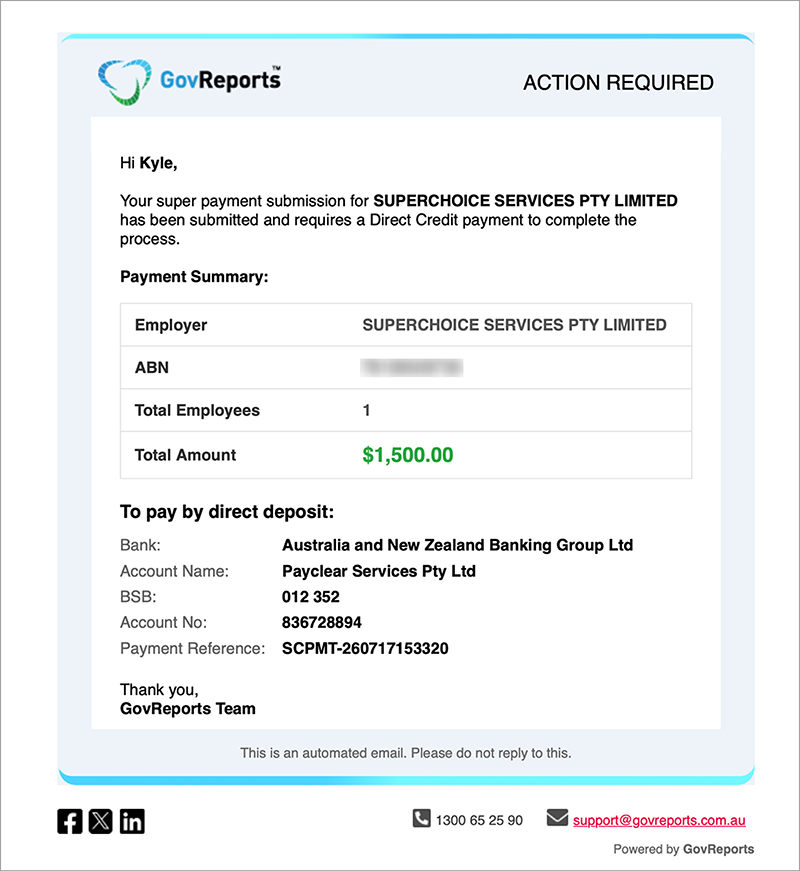
The correct PRN must be included in the direct credit payment to SuperChoice. If the number is incorrect or does not match, the payment will be rejected.
It may take up to 21 days for a rejected payment to be returned to your bank account. You will be liable for government penalties and SuperChoice fees. You will need to process the payment again using the correct details. GovReports will charge the usual fee per employee per transaction for any repeated payments.
Once you have made the payment, SuperChoice has three days to distribute the funds to the individual super fund account. When the funds have been received by SuperChoice, you will see the progress in the Payment Timeline of each super payment.
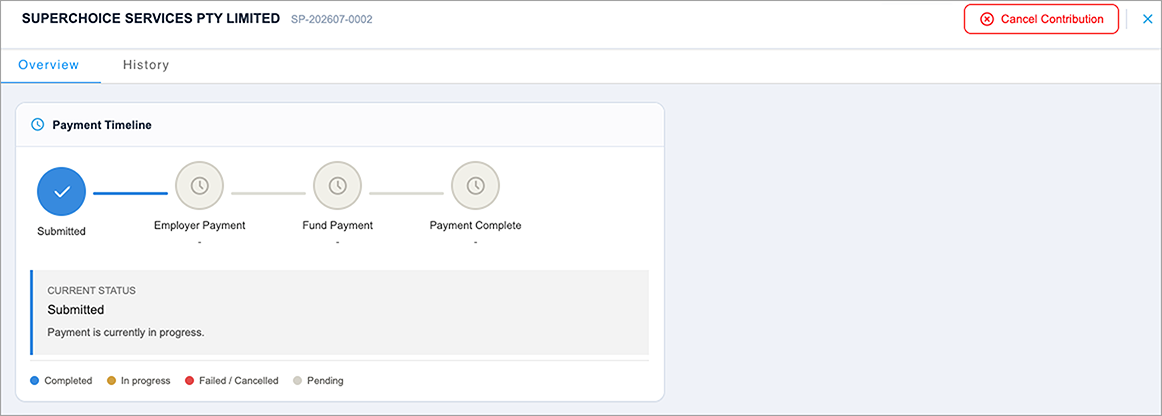
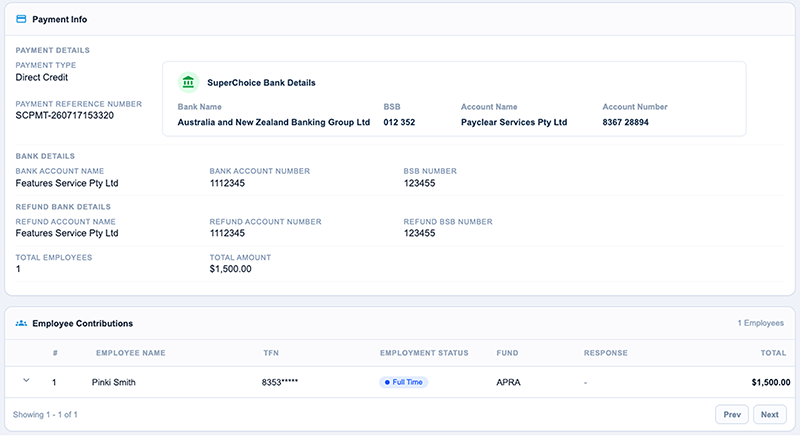
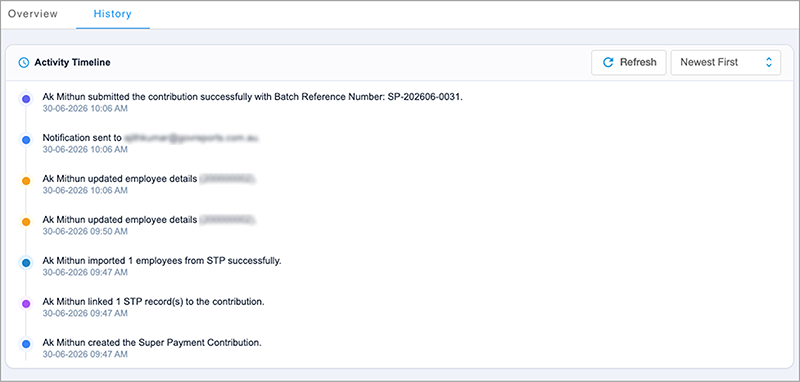
You can also see the audit trail of activities associated with each submission.
If you have submitted a super payment to SuperChoice, it may be possible to cancel it within three days, during the period that SuperChoice holds the funds.
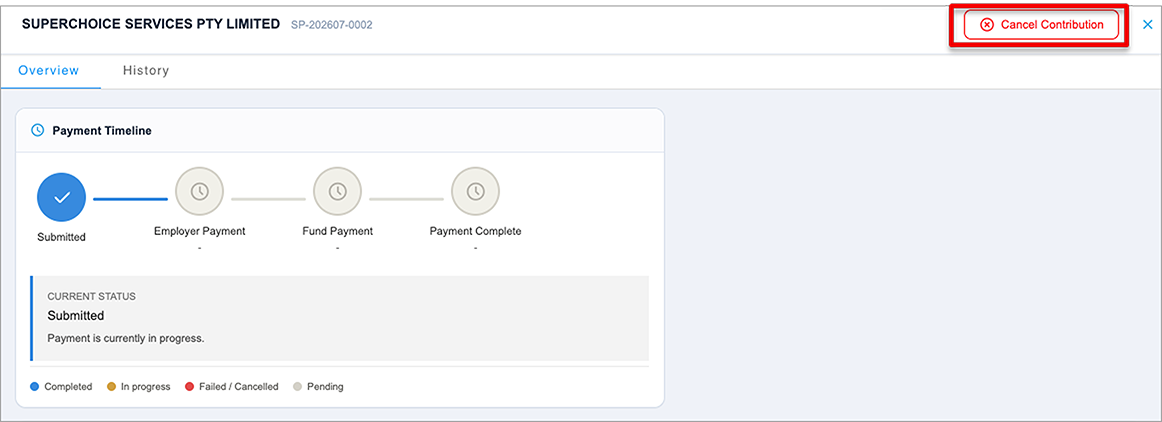
Select Cancel Contribution.
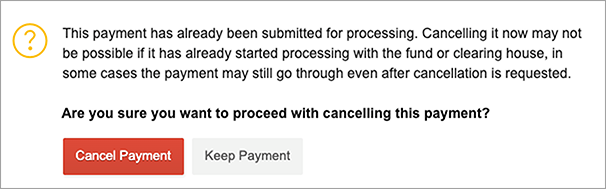
Note that if SuperChoice has already distributed the payment to employees super funds, the payment may not be cancelled.
From the superannuation payment screen, if any errors are present, select Errors to check if anything needs attention before finalising the payment.
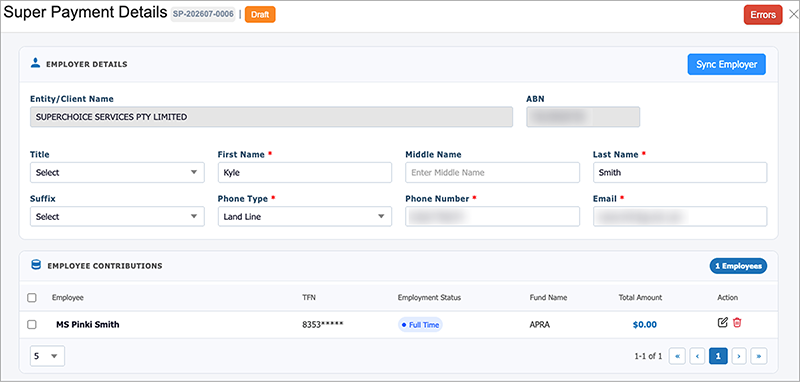
If errors are present the message will tell you what is needed.
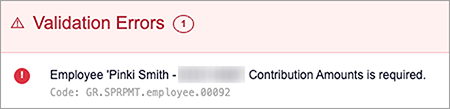
Once errors are corrected, you will see an all clear message.

If errors occur, the super payment will be saved as a draft, allowing you to fix the error and then return to the draft payment before submitting it.
The Help Centre is available from the main menu and any screen.